Keyboard knob horizontal scroll remapping reassigns the built-in rotary encoder on your mechanical keyboard from its default volume function to the horizontal scroll axis — allowing clockwise rotation to move a spreadsheet or timeline view right, and counterclockwise to move it left. The result is single-gesture horizontal navigation with no modifier key, no mouse repositioning, and no scroll bar interaction. This post explains the technical implementation, the configuration process, and the specific workflows where the remap produces a measurable improvement over the standard Shift + scroll wheel shortcut.
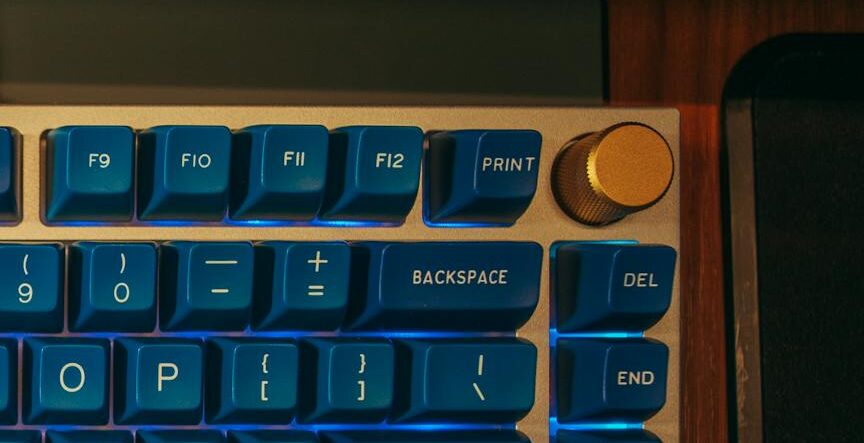
Keyboard Knob Horizontal Scroll Guide
What Is Keyboard Knob Horizontal Scroll and How Does It Work?
Standard keyboard knobs output a directional signal — clockwise or counterclockwise — that the operating system interprets as a HID (Human Interface Device) command. The default HID mapping for rotary input is vertical scroll or volume. Keyboard knob horizontal scroll remapping replaces that default with the HID AC Pan signal (Usage 0x01AC), which is the specific descriptor the operating system reads as horizontal movement.
In practical terms, the application receives the same signal it would receive from a horizontal trackpad swipe or a Shift + scroll wheel input — but generated by a single continuous rotation of the keyboard knob rather than a two-input modifier sequence. The user rotates until the view reaches the target column or timeline position, then stops. No key held down. No gesture re-engaged mid-traversal.
There are two technical pathways for implementing keyboard knob horizontal scroll:
- Firmware-level HID remapping: The keyboard’s open-source firmware (such as QMK, VIA, or VIAL) reassigns the encoder’s output at the core hardware layer. The application receives a genuine AC Pan signal. This is the cleaner implementation — applications interpret it identically to a native horizontal scroll gesture.
- Shortcut injection: Proprietary manufacturer software intercepts the dial signal and injects a Shift + ScrollWheel keyboard combination. Functionally equivalent in most applications but can produce inconsistent behavior in browser-based tools that interpret shortcut inputs differently from native HID signals.
Why Is Shift + Scroll Wheel Not Sufficient for Wide-Format Navigation?
The Shift + scroll wheel shortcut works. The case for keyboard knob horizontal scroll is not that the shortcut fails — it is that the shortcut has an ergonomic cost that accumulates invisibly across sustained wide-format sessions.
Holding Shift while scrolling occupies the hand with a modifier key for the entire duration of horizontal navigation. In short bursts — moving one or two columns in a spreadsheet — the cost is negligible. In sustained sessions involving 40-column financial models, multi-hour video timelines, or year-long Gantt charts, the modifier key is held continuously for minutes at a time. Ergonomic literature on repetitive modifier key use identifies this as a low-grade strain contributor — invisible precisely because it never reaches a threshold that triggers conscious attention.
Keyboard knob horizontal scroll eliminates the modifier key entirely. The hand returns to a neutral resting position. Navigation becomes a single-hand, single-object gesture. See also: [internal link: keyboard shortcut fatigue and ergonomic fixes].
The Myth vs. Reality: “The Scroll Bar Is Fine for This”
The horizontal scroll bar — the thin strip at the bottom of spreadsheets and timeline editors — is the default tool most users reach for when horizontal navigation volume increases. Its limitations are geometric: it requires the user to abandon the current mouse position, travel to the screen edge, and perform a click-drag with precision proportional to how far along the document they need to travel. Overshoot is common. Re-correction adds steps. The round trip interrupts the primary task more significantly than the Shift + scroll shortcut does.
Keyboard knob horizontal scroll removes both the positional abandonment and the precision requirement. The hand stays right on the keyboard chassis. The gesture is continuous rather than positional. For sustained wide-format navigation, this is a meaningful reduction in task overhead, not a minor convenience.
How to Configure Keyboard Knob Horizontal Scroll Step by Step
The configuration process varies by whether your keyboard uses open-source firmware (VIA/QMK) or a proprietary manufacturer application (Logitech Options+, Razer Synapse, Asus Armoury Crate).
- Open your configuration software (e.g., connect your keyboard to usevia.app or open your manufacturer’s desktop software).
- Navigate to the Keymap or Profile section and locate the rotary encoder settings. If using custom software, ensure you create a profile specifically for your target tool—like Excel, DaVinci Resolve, or Premiere Pro.
- Assign the knob to horizontal scroll. In VIA/VIAL, you can map the encoder directly to
KC_WH_L(Wheel Left) andKC_WH_R(Wheel Right) or use custom QMK macros forAC Pan. In proprietary software, look for “Horizontal Scroll” or “Mouse Scroll X” in the action library. If the software requires shortcut injection, assign Shift + ScrollWheel as the clockwise/counterclockwise action. - Set the scroll speed (acceleration curve) if your software supports it. Start at a low value — one cell or one small increment per physical click (detent) of the knob — and increase gradually during a test session.
- Test in the target application before finalized saving. Rotate through a representative document — 30+ columns in a spreadsheet, 60+ minutes in a timeline — to validate that the speed, detection reliability, and directional mapping perform correctly.
- Create a separate profile or layer for browser-based versions of your tools (e.g., Google Sheets in Chrome) as these web-hosted environments may require separate scroll speed calibration due to the browser’s input interpretation layer.
Total configuration time: approximately five to ten minutes. It is a one-time setup that maps seamlessly into your everyday typing layout.
Which Workflows Benefit Most From Keyboard Knob Horizontal Scroll?
Keyboard knob horizontal scroll produces its highest return in workflows where the horizontal axis carries significant data across distances that require repeated traversal in a single session. The specific contexts where the remap earns its configuration time:
- Wide spreadsheet analysis: Financial models, multi-month budget trackers, and data tables with 20+ columns. The knob replaces scroll bar interaction and Shift + scroll sequences with continuous rotation across the full data width.
- Video timeline editing: Long-form projects in DaVinci Resolve, Premiere Pro, or Final Cut where the timeline extends across hours of footage. The knob provides fast, consistent traversal during review sessions without requiring frame-accurate precision — that remains the role of JKL scrubbing or a dedicated editing wheel.
- Project management tools: Gantt charts and roadmap views in tools like Notion, Monday, or Smartsheet where the horizontal axis represents time and traversal across quarters or years is a regular task.
- Design file navigation: Wide artboard layouts in Figma or Illustrator where horizontal pan is a frequent navigation gesture during multi-screen or presentation-format design work.
The remap does not meaningfully improve workflows where horizontal navigation is occasional — one or two columns at a time, infrequent scrolling, or predominantly vertical document structures. For those contexts, the Shift + scroll shortcut is adequate and the configuration adds layout complexity without proportional return. See also: [internal link: mechanical keyboard buying guide].
What Are the Known Limitations of Keyboard Knob Horizontal Scroll?
Application detection edge cases. Manufacturer software that uses window-title matching rather than process-level detection can fail to trigger the correct profile in edge cases — a spreadsheet open inside a browser, a design tool in a floating window, or a second monitor context. Firmware-level mapping via VIAL layers tied to specific hotkeys avoids this issue entirely.
Browser-based tool inconsistency. Google Sheets, Notion, and other browser-hosted tools interpret horizontal scroll signals through the browser’s input handler before passing them to the application. This intermediate layer can apply its own speed multiplier, producing faster and less predictable movement than the same knob action in a native desktop application. Calibrating browser profiles or secondary layers separately is the reliable fix.
Scroll speed calibration is iterative. The correct acceleration setting differs meaningfully between applications and between phases of work within the same application. A speed appropriate for fast traversal across a 200-column sheet overshoots in a 20-column review context. Users who need both speeds should leverage keyboard layers to toggle between a fast and slow encoder mapping.
No precision scrubbing. Keyboard knob horizontal scroll is a navigation tool, not a precision input. For frame-accurate editorial work in video timelines, the knob gets the view to the right section; it does not land on the exact frame. JKL scrubbing and dedicated jog wheel input remain the correct tools for precision positioning.
The Bottom Line
Keyboard knob horizontal scroll remapping is a narrow, high-value configuration for professionals who navigate wide-format documents and timelines as a sustained, repeated activity in their work sessions. The configuration eliminates the modifier key overhead of Shift + scroll and the positional overhead of scroll bar interaction, replacing both with a tactile, single-gesture input built right into the keyboard chassis. For occasional horizontal navigation, the shortcut remains sufficient. For sustained wide-format sessions, utilizing your keyboard’s built-in encoder is the more ergonomically correct tool for the task.
Frequently Asked Questions
What is keyboard knob horizontal scroll?
Keyboard knob horizontal scroll is a configuration that reassigns the built-in rotary encoder on a mechanical keyboard from its default function (typically volume) to the horizontal scroll axis. Rotating the knob clockwise moves the active document or timeline view right; counterclockwise moves it left. It replaces the Shift + scroll wheel modifier shortcut with a single continuous gesture.
Does keyboard knob horizontal scroll work in Google Sheets?
Yes, but with caveats. Google Sheets running in a browser routes horizontal scroll signals through the browser’s input handler before the application receives them. This intermediate layer can apply its own speed interpretation, producing faster or less predictable movement compared to native applications like desktop Excel. A separate, lower-speed profile or dedicated keyboard layer calibrated specifically for browser-based tools typically resolves the inconsistency.
Can I configure different scroll speeds for the same keyboard knob?
Yes. If your keyboard supports QMK/VIA firmware, you can assign the knob to perform different functions or scroll at different speeds depending on which custom layer is active. For proprietary software, many suites allow you to switch profiles automatically based on the active application window.
Will this configuration affect my trackpad or other input devices?
No. Keyboard remapping operates at the keyboard hardware or driver level, reassigning the encoder’s output signal only. All other input devices — trackpad, standalone mouse scroll wheel — continue to function through the operating system’s standard input stack, completely unaffected by the knob’s configuration.
Is keyboard knob horizontal scroll the same as using a trackball for wide navigation?
They address the same problem from different hardware approaches. A trackball provides full two-axis navigation — horizontal and vertical — with high precision and no modifier key. The keyboard knob provides single-axis horizontal navigation directly from your typing platform without requiring you to take your hand off the keyboard chassis. For users who already use a trackball, the remap adds limited value, but for traditional keyboard-and-mouse users, it unlocks an incredibly ergonomic navigation asset.
The full custom keyboard configuration series, including encoder options, custom layer layouts, and workspace setup guides, is on the blog — [internal link: mechanical keyboard buying guide] [internal link: rotary knob undo redo remap] [internal link: keyboard shortcut fatigue and ergonomic fixes]. Check it or don’t. Stay chaotic.